Features
Everything the bar does, button by button.
Four steps to your first answer, a real interview second by second, every button on the bar to try for yourself, and what each answer costs in credits.
How it works
Four steps. No API keys anywhere.
- 01
Download
Install Avyro on your Mac, or get it from the Microsoft Store on your Windows PC. There are no keys to paste and nothing to configure.
Mac (.dmg) · Windows (Microsoft Store) - 02
Sign in with your browser
Avyro shows a short code and opens your browser. Sign in, check the code matches, and press Allow.
ABCD-EFGH - 03
30 free credits
Claim them once on your account page or in the app, then press Voice on any call. Listening uses 3 credits a minute, and each answer a few more.
30 credits - 04
Upgrade for more credits
Pro adds 800 credits every month, Opus, Watch screen and Undetectable, which keeps the bar off screen shares and recordings.
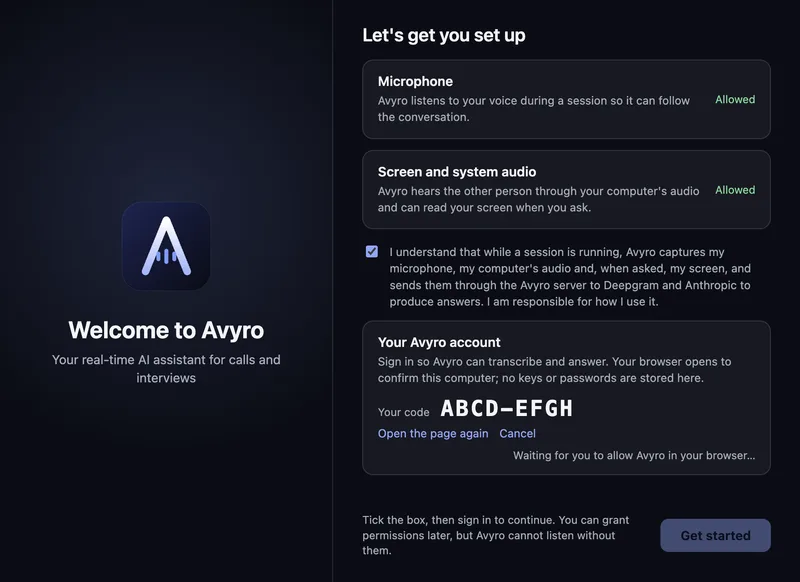
The AI runs on Avyro's side, so the app holds no keys. Sign in once with your Avyro account and it stays signed in until you sign out.
A real interview
One interview, second by second.
01 / 08
The call starts
Avyro sits quietly on your screen and listens to the call.
Every button, explained
Point at a button. Then press it.
This is the Avyro bar, button for button. Hover or tap anything to see what it does, then use it: start Voice, drag the transparency, switch the answer length, or turn on Undetectable.
Watch every button in action · 2:38
On the bar
Auto answer
When the other person finishes a question, the answer starts streaming. No click, no shortcut.
Shortcuts
They work here too while this section is on screen.
- ⌘\
- Show or hide the bar
- ⌘↵
- Ask about your screen
- ⌘⇧L
- Start or stop listening
- ⌘⌥← ↑ → ↓
- Move the bar
- Ctrl⇧↑ ↓
- Scroll the answer
Drag the edges
Make the bar wider or taller. Double-click the bottom edge to let it size itself again.
Menu bar and tray
Start listening, show or hide Avyro, turn Undetectable on, switch mode, open Preferences or quit, from the icon in your menu bar or system tray.
Preferences
General, Calendar, Notifications, Modes, Keybinds, Profile, Security, Billing and About, in one window.
Resize and lock
Any size you like. Then lock it.
Drag the bar by its sides, corners or grip, the same way as in the app. Then ask a long question with the lock on and off to see the difference.
Unlocked · grows to fit the answer640 × 112
Credits
How credits work.
One balance pays for answers, listening and natural voices. Here is what things typically cost, and what each plan gives you.
As a guide, 30 credits is about 7 minutes of interview help with Sonnet, or about 9 with Haiku, and 800 credits covers about three 45-minute interviews with 20 Sonnet answers each.
Compare the plansTypical costs
- 1creditAn answer with HaikuThe same with a screenshot
- 4creditsAn answer with Sonnet5 with a screenshot
- 7creditsAn answer with Opus9 with a screenshot
- 13creditsAn answer with Opus fast17 with a screenshot
- 3a minuteListeningStarting Voice charges the first 5 minutes up front; unused whole minutes come back when you stop
- 1per 130 charactersA natural voiceStarter speaks with your computer's own voice, for free
Answers are charged from what they really use, so these are a guide, not a price list.
What a credit is
Credits pay for the AI work Avyro does for you: answers, listening and natural voices. Each answer is charged from what it really uses, at least 1 credit, so a short answer costs less than a long one.
30 free credits, once
Sign in, then claim them on your account page or in the app. The 30 free credits are given once per person, not every month, and they're used before any paid credits.
Monthly credits that roll over
Pro adds 800 credits every month and Pro Max 4,000. Unused ones roll over, up to 1,600 and 8,000. When a paid plan ends its credits expire, while free credits you haven't used stay.
When you run out
Avyro stops listening and answering and tells you you're out of credits. Your settings, modes and files stay as they are. Paid plans refill on the same day each month; on Starter, a paid plan gives you credits every month.
Credits on each plan
Starter
30 once
Given once per person. Never refills.
Pro
800 a month
Unused credits roll over, up to 1,600.
Pro Max
4,000 a month
Unused credits roll over, up to 8,000.
Credits given Most a balance can hold with rollover
Films
See it on a real screen.
Up next
Modes
Interviews, coding rounds, sales, lectures: one bar that answers the way the call needs.
Free to start, with 30 free credits. Mac and Windows.